Install RecipeBook on Your Phone
Add RecipeBook to your home screen for one-tap access and a full-screen app feel — no app store, no download, completely free.
Open RecipeBook in Safari
Visit recipes4all.online in Safari. Installing to your home screen only works from Safari on iPhone, not from Chrome or another browser.
Tap the Share button
Tap the Share icon in Safari's toolbar — a square with an arrow pointing up.
Choose "Add to Home Screen"
Scroll down the share menu, tap "Add to Home Screen", then tap "Add" in the top-right corner.
RecipeBook now sits on your home screen like any other app. Tap its icon any time to open it full-screen.
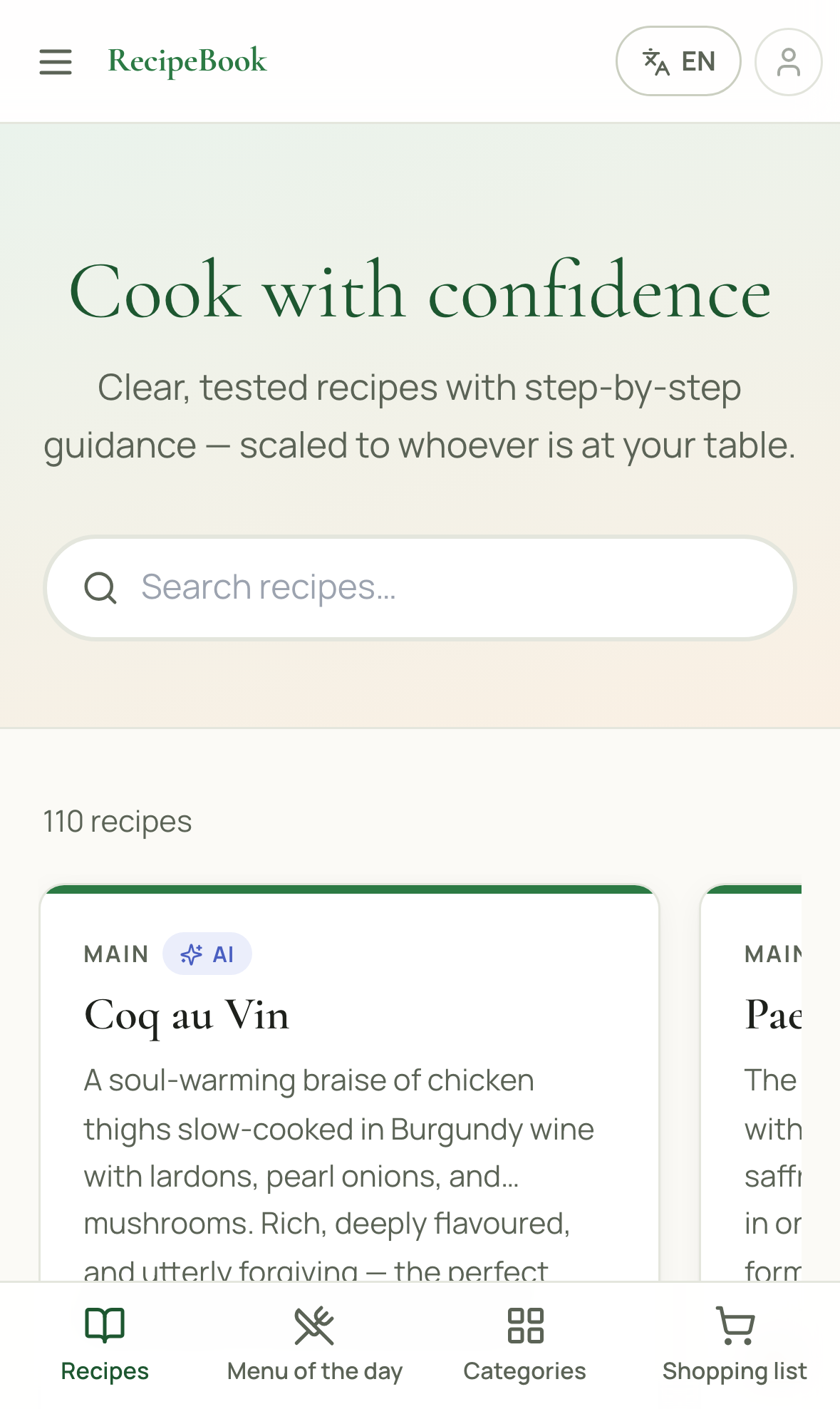
Open RecipeBook in Chrome
Visit recipes4all.online in Chrome. Most Android browsers support installing, but the steps below are for Chrome.
Open the browser menu
Tap the three dots in the top-right corner of Chrome.
Tap "Install app"
Select "Install app" (or "Add to Home screen"), then confirm by tapping "Install".
RecipeBook is added to your home screen and app drawer, just like an app from the Play Store.
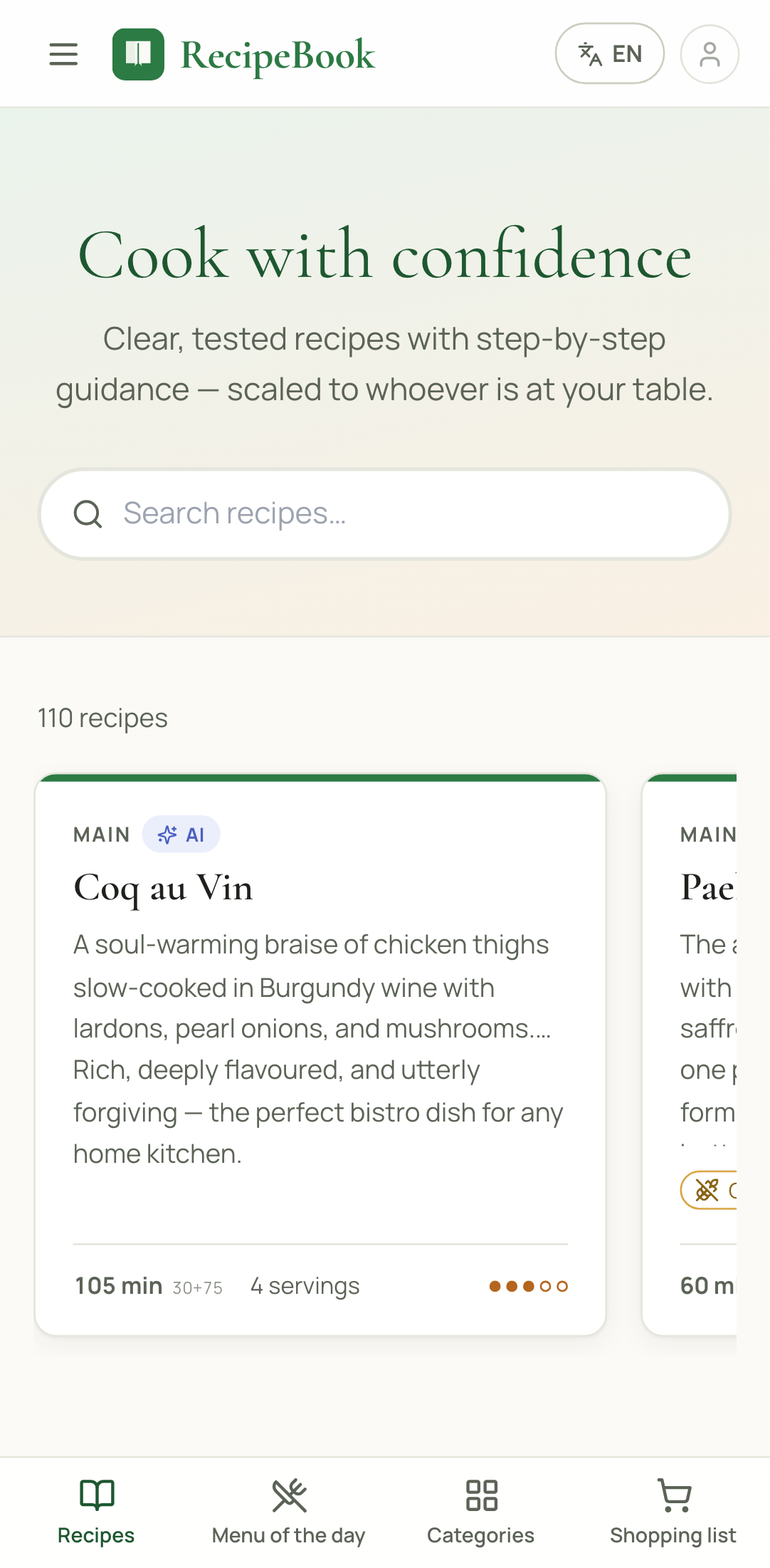
Common questions
Does it cost anything?
No. RecipeBook is completely free, and installing it needs no account, no payment and no app store.
Does it work without internet?
Recipes you've already opened stay available offline, so you can keep cooking even with patchy kitchen Wi-Fi.
Do I need to update it myself?
No — RecipeBook updates itself automatically in the background, the same way any website does.
How much space does it use?
Only a few megabytes — far less than a typical app, since most of it loads from the web as you browse.
Already installed it?
See how to get the most out of RecipeBook